How to Send Files From Your Phone to Your Computer (No App, No Cable)
iPhone to Windows, Android to Mac, any phone to any computer: scan a code and send photos, videos and files up to 10 GB straight across. Nothing is uploaded.
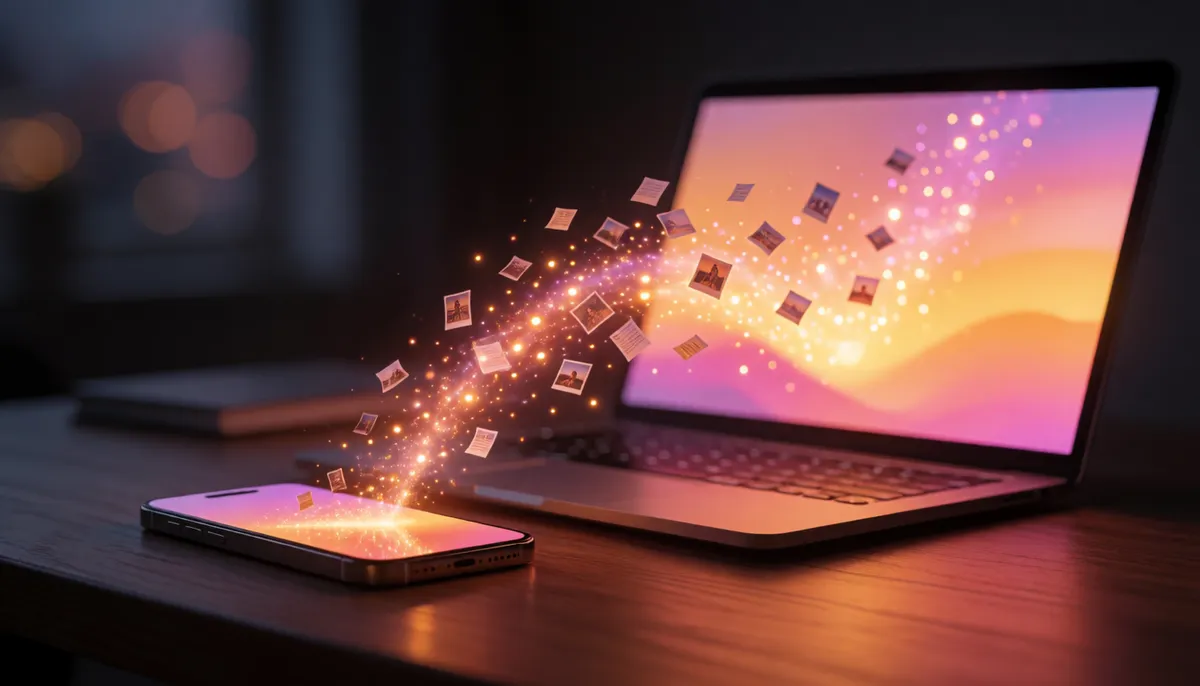
Getting a few photos or a video off your phone and onto your computer should be easy. Usually it isn't. AirDrop only works between Apple devices. Quick Share mostly works between Android and Windows. Emailing files to yourself shrinks them or hits a size limit, and cloud folders mean uploading everything and downloading it again.
We built a free page that skips all of that: File Transfer: Phone ⇄ Computer. Open it on both devices, scan a code, and send. It works between any phone, tablet and computer with a web browser, in either direction, with no app and no account.
How to send files in four steps
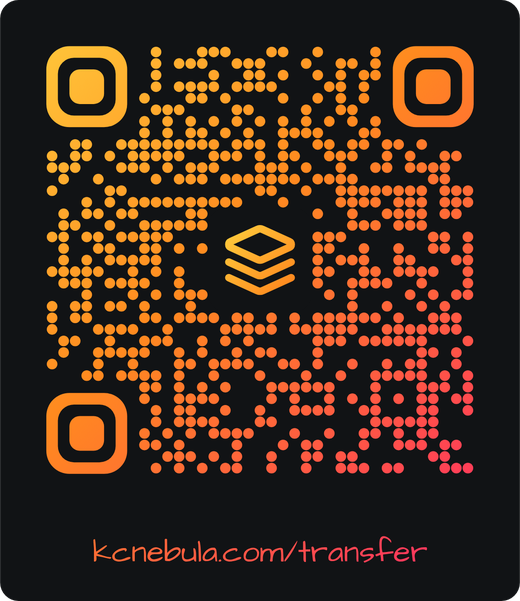
- Open kcnebula.com/transfer on your computer. A code appears, as a QR code and as 8 characters.
- Scan the QR code with your phone's camera. The same page opens on your phone and the two devices link up. No camera handy? Open the page on the other device and type the 8 characters.
- Check the four symbols. Both screens show the same four symbols when the link is private to your two devices. The page also shows what kind of device you're connected to, like "Android phone · Chrome". If anything looks wrong, press Disconnect.
- Send. Drop files in on either device. On the other one, press Save, or Share… on a phone to put photos straight into your gallery.
Files arrive exactly as they left, byte for byte: no compression, and photos keep their full quality. Each file can be up to 10 GB, and you can send as many as you like.
Where do the files go?
Straight from one device to the other. They are never uploaded to our website or stored on any server, so there is no link that expires, no upload to wait for, and nothing for anyone to leak later.
To link up, the two devices need to find each other on the internet. For a few seconds, a small pairing service passes their connection details between them, mainly their internet addresses. It never sees your files, their names or their sizes, keeps nothing, and forgets each pairing within 10 minutes. After that the devices talk to each other directly.
Is it encrypted?
Yes, always. Browsers encrypt this kind of direct link automatically and don't let anyone turn that off. The four matching symbols come from both devices' encryption keys, so if anyone got in between, the symbols wouldn't match.
Do both devices need to be on the same Wi-Fi?
No. Your phone can be on mobile data and your computer on home Wi-Fi, and they'll usually link straight across the internet. Linking can take a few seconds while they find a path to each other.
A few networks block direct links: roughly 8 to 15 in every 100 pairs of networks. The usual causes are mobile carriers that share one internet address between many phones, office and school firewalls, and VPNs. If yours does, the page tells you. The fix is easy: put both devices on the same Wi-Fi, or turn on your phone's hotspot and join it from the computer.
Tips
- Keep both pages open until it says Sent and Received. On a phone, keep the screen on and the browser in front; switching apps can pause a big transfer.
- Speed depends on the slower connection. On home Wi-Fi a 1 GB video usually takes a minute or two.
- iPhone photos arrive as HEIC, exactly as they're stored. If Windows won't open them, convert them with the free HEIC to JPG converter.
- Older iPhone browsers can only receive files up to 500 MB. For bigger files, open the page in Chrome on the receiving device.
- Only open files from people you trust. The page warns you when a received file could run programs, like an .exe or .apk.