Sign PDFs Without a Printer: Make a Clean Signature Image
Skip the printer. Learn how to create a clean, transparent PNG signature online and paste it directly into PDFs, contracts, and email forms without a single click of hardware.
Paperwork used to mean a trip to the store for toner or a run to the local print shop. Today, most documents live in your email inbox or a secure portal, yet you are still expected to sign them. If you try to scan a handwritten note from a napkin, you often end up with a blurry, jagged image that looks unprofessional on a legal contract. If you type your name in a fancy font, it can feel impersonal and sometimes gets rejected by automated document processors. There is a better way that requires no hardware, no scanning, and no waiting for a mail merge.
You can create a high-quality, transparent signature image in your browser and drop it directly into any PDF or form. This method keeps your signature looking sharp, consistent, and professional, while ensuring the file remains lightweight for email attachments.
When you need a clean, see-through image of your signature to paste into a document, head to the Nebula Signature Maker. It allows you to draw, type, or photograph your signature and download it as a transparent PNG, ready to be used immediately.
Why a Transparent PNG is Essential
The standard for digital signatures in business and legal contexts is a transparent PNG file. Unlike a JPG, which has a solid white background, a PNG allows you to see the pixels underneath. This means you can place your signature over a logo, a watermark, or a patterned background without it looking like a sticker pasted on top of the page.
Most online PDF editors and word processors handle PNG files seamlessly. When you insert a transparent signature, it blends into the document as if you had written it by hand on that specific page. It also prevents the "white box" issue, where a signature image covers up important text or lines behind it. For contracts, invoices, and forms, this clean integration is the difference between a document that looks like it was printed and one that looks like a digital hack.
Three Ways to Create Your Signature
You do not need a graphics tablet or a stylus to get a professional result. The Nebula tool supports three distinct methods, allowing you to choose the one that feels most natural or matches the style you use in real life.
- Draw it: If you have a trackpad or a touchscreen, you can draw your signature directly in the browser. This is often the most accurate method because it captures the pressure and flow of your actual handwriting. It works well for cursive styles and ensures the strokes are smooth and vector-like.
- Type it: If your signature is illegible to others but familiar to you, or if you prefer a clean, typed look, you can type your name and choose from a variety of script fonts. This is fast and great for people who do not have a steady hand for drawing. You can adjust the font size and weight to match the rest of the document.
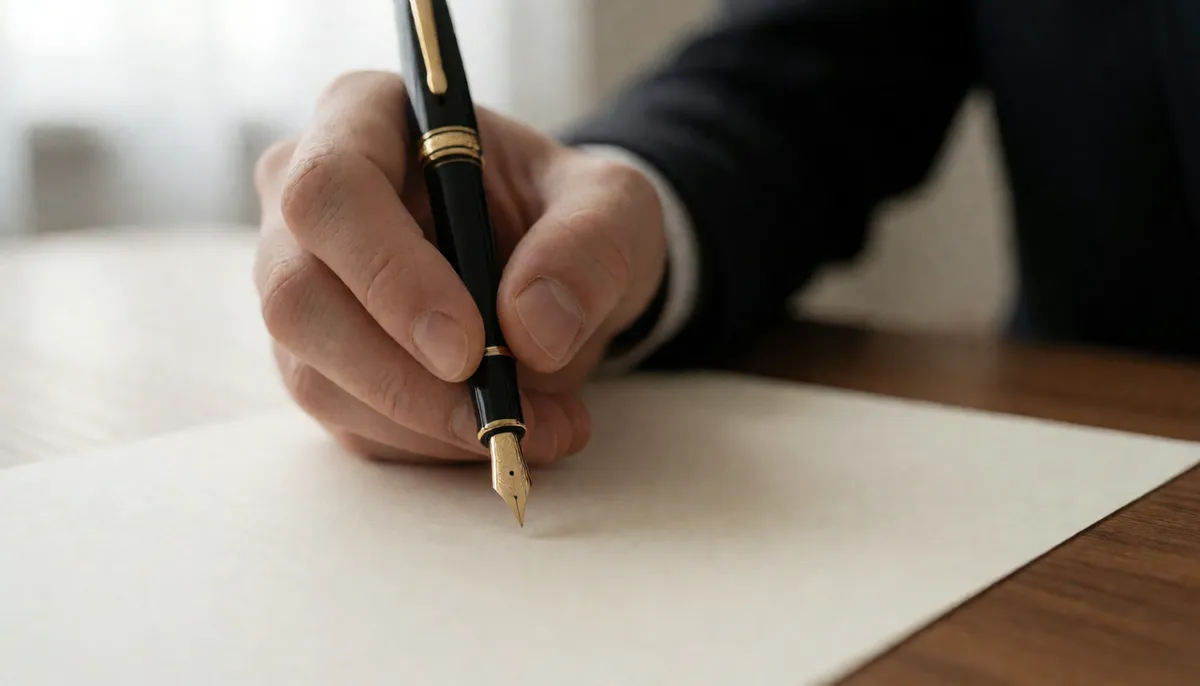
- Photograph it: You can take a photo of your signature on a white piece of paper. The tool automatically removes the white background, leaving only the ink. This is ideal if you have a specific handwritten signature that you use for all official documents and want to replicate it exactly.
Each method produces a high-resolution image. You are not dealing with a low-bitrate GIF or a pixelated JPEG. The output is crisp, meaning it will not look blurry when you zoom in or print the final document.
Pasting It into PDFs and Forms
Once you have downloaded your transparent signature, the process of using it is straightforward. You do not need complex software like Adobe Pro. Most modern PDF viewers, including the free viewers built into browsers and operating systems, allow you to insert images.
- Open your document: Open the PDF, contract, or form in your preferred viewer.
- Locate the signature line: Zoom in to the area where your signature is required. Make sure you are aligned with the date field or the "Signed by" line.
- Insert the image: Use the "Insert Image" or "Sign" tool in your PDF editor. Select your downloaded PNG file.
- Resize and position: Drag the corners of the image to resize it. Because the background is transparent, you can see exactly where the strokes land relative to the line. Move it into the correct position.
- Save the file: Save the document as a new PDF. Do not save it as a JPG, as this will compress the quality and might add a background color to your transparent image.
This workflow is also perfect for filling out government forms or university applications that require a signature but do not have a built-in digital signature field. You are essentially pasting a high-resolution version of your handwriting into the correct box.
Security and Privacy Considerations
One of the biggest concerns with digital signatures is security. When you use a tool to create a signature image, you are not sending your biometric data to a server for storage. The Nebula Signature Maker runs entirely in your browser. This means the image is generated on your device, not on a remote server. Your signature data never leaves your computer or phone unless you explicitly upload it to a third-party service to sign a document.
This is a significant privacy advantage. You retain full control over your signature file. You can store it in a secure folder on your computer and reuse it as many times as you need. There is no risk of a data breach exposing your handwritten signature to strangers. You can also delete the file from your device at any time if you feel it is no longer needed.
However, keep in mind that a static image signature is not the same as a cryptographic digital signature. A static image proves that you intended to sign the document, but it does not verify the integrity of the file after signing. If you are sending sensitive contracts, always use a PDF format that locks the content, or use a dedicated e-signature service for the final step. For most everyday tasks like job applications, rental agreements, and internal business forms, a high-quality transparent PNG is perfectly acceptable and widely recognized.
Tips for a Professional Look
To ensure your signature looks its best, pay attention to the details. First, keep the aspect ratio. Do not stretch your signature to make it wider or taller. This distorts the strokes and makes it look artificial. Instead, resize it uniformly by dragging the corners.
Second, consider the color. Most digital signatures are black, but some documents use dark blue ink. You can usually adjust the color of your signature image in your PDF editor before saving. If your tool does not allow color adjustment, you can use a simple image editor to change the black pixels to a dark blue hex code like #00008B. This small detail can make your signature blend in better with the rest of the document.
Finally, save a high-resolution version. Even if you are only going to use the signature on screen, save the original file at the highest quality available. This ensures that if you need to print the document later, the signature will still be sharp and legible. A low-resolution signature can look jagged on paper, which undermines the professionalism of the entire document.
Creating a clean, transparent signature is no longer a hassle. With the right tools, you can bypass the printer and the scanner and get a professional result in minutes. Whether you are signing a lease, a contract, or a school form, you can do it with confidence and ease. Visit the Nebula Signature Maker to create your signature now and keep it ready for your next document.