The 2-Minute Video Call Pre-Check
Stop the awkward 'can you hear me?' loops. Use this two-minute checklist to verify your camera, mic, and speakers before the call starts.
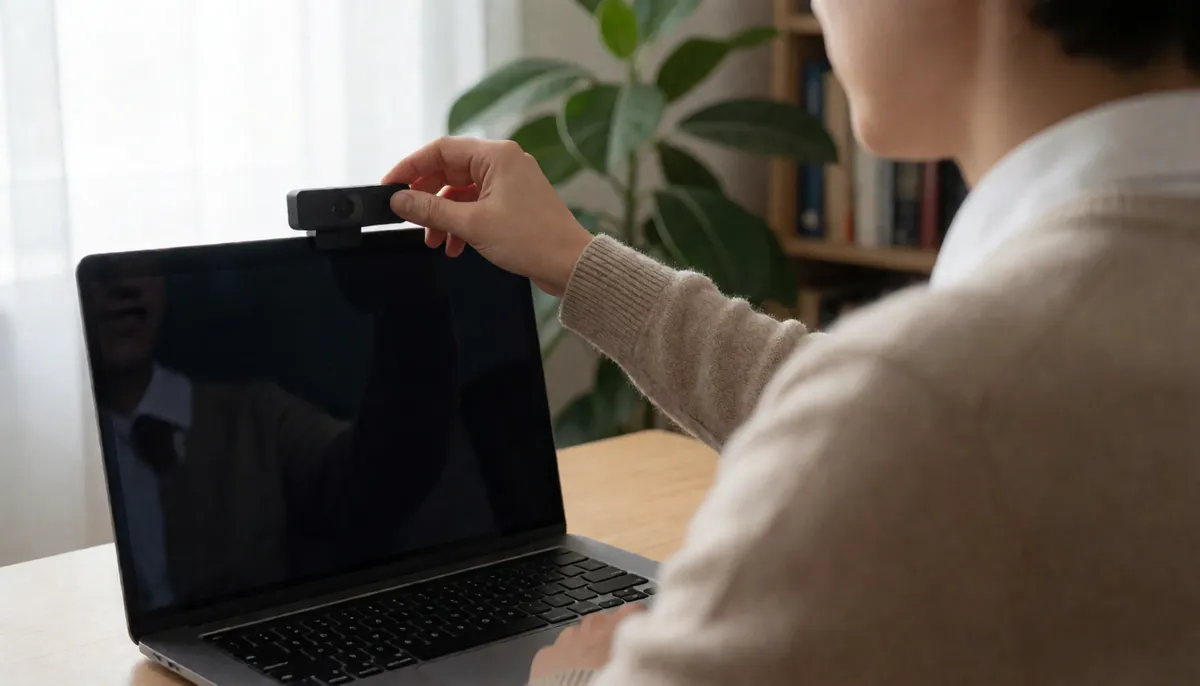
There is a specific type of dread that settles in your chest right before a video call. You click join, and for three seconds, it is just you and a black screen. Then, a wave of silence. "Can you hear me?" "I can't see you." "Your audio is cutting out." It is awkward, it wastes time, and it makes you look unprepared before you have even said hello.
You do not need expensive hardware to avoid this. You just need a two-minute routine. This checklist helps you verify that your camera, microphone, and speakers are actually working before you invite anyone else into the room. It takes less time than finding your pen, and it saves you from the first five minutes of technical troubleshooting.
1. Check the Visuals: Camera and Lighting
Your face is the first thing people see. If your camera is off, blurry, or pointing at the ceiling, the conversation starts on the wrong foot. Before you join, open your camera application or a test page to see what the other person will see.
- Angle: Is the camera at eye level? Looking up at a laptop camera makes you look like you are shrugging. Look down from a phone or tablet if possible, or raise your laptop on books.
- Lighting: Is there a window behind you? If so, you are a silhouette. Face a light source. If it is dark, turn on a lamp in front of you, not behind you.
- Focus: Are you sharp? If your image is blurry, clean your lens. A microfiber cloth or the corner of your shirt works wonders.
Once you have adjusted the angle and light, run a quick check using the Mic & Webcam Test. This tool lets you see exactly what the camera is capturing, including resolution and frame rate. If the test shows a frozen or blurry image, fix it now, not during the interview.
2. Verify the Audio: Microphone and Input
People are far more forgiving of a bad video image than they are of bad audio. If your voice is quiet, muffled, or has a strange echo, people will struggle to listen. Check your microphone input levels.
- Speak naturally. Say a sentence out loud. Watch the input meter. It should move green bars as you speak. If it stays flat, your mic is muted or disconnected.
- Check the source. Are you using the built-in laptop mic, a headset, or an external USB mic? Make sure the computer is listening to the right one. Often, the system defaults to the wrong device after a reboot.
- Listen for background noise. Is there a hum from the fans? A keyboard clacking? Move away from the source if possible.
Use the Mic & Webcam Test to record a short clip of yourself. Listen back to it. You will hear exactly what the other person hears. If your voice sounds robotic, try a different microphone input in your settings. If it sounds like a cave, you are too close to the mic. Move back six inches.
3. Test the Output: Speakers and Headphones
This is the step most people skip. You know you can hear yourself, but can you hear them? If your speakers are broken, you will be talking over each other. If you are wearing headphones, make sure the audio is routing to them, not the laptop speakers.
- Play a test tone or video. Play a short clip with clear dialogue. Can you hear it clearly? Is it balanced left and right?
- Check for feedback. If you are using a headset, make sure the microphone is not picking up the speakers. If you hear a ringing sound, lower the volume or move the mic away from the ear cup.
- Volume level. Set your volume to 70-80%. Do not max it out. If the speaker on the other end turns their volume up, you will be too loud. If you are at 80%, you have headroom to turn it up if they are quiet.
4. The Final Sweep: Background and Connection
Before you hit join, take one last look at the whole package. Your technology is ready, but what about the environment?
- Background: Is there a messy pile of laundry behind you? A half-eaten sandwich? A whiteboard with secrets written on it? Tidy it up or use a virtual background if your app allows it.
- Connection: Are you on Wi-Fi or a wired connection? If you are on Wi-Fi, move closer to the router. If you are in a coffee shop, ask for a wired connection if possible. A stable connection is better than a fast one that drops.
- Notifications: Silence your phone. Turn off desktop notifications. You do not want a "New Message from Mom" pop up during a salary negotiation.
Make It a Habit
This checklist takes two minutes. It is the difference between a professional who is ready and a person who is troubleshooting. Make it a habit before every important call. Do it before job interviews, client meetings, and family video chats.
Start by running your equipment through the Mic & Webcam Test. See what they see, hear what they hear, and fix it before you join. When you walk into the call, you will know your gear works. That confidence changes how you speak, how you sit, and how you engage. You stop worrying about the technology and start focusing on the conversation. That is how you start without the awkward "can you hear me?" and get straight to the point.