Show, Don't Type: Quick Screen Recording Guide
Stop typing long descriptions. Record your screen, voice, and webcam in seconds to explain bugs, teach family, or send client walkthroughs. No install, no watermark, no limits.
Describing a software error in words is often like explaining a dance by describing the footwork. It is confusing, slow, and rarely accurate. If you have ever tried to tell a developer exactly where to click, only to have them miss the button by two pixels, you know the frustration.
The fix is simple: show them. A thirty-second video that captures your screen, your voice, and even your face is worth a thousand words. It creates a shared moment of understanding between you and the person on the other end of the line. You can highlight the exact error, point to the right menu, and explain the context without sending five separate screenshots that arrive out of order.
For most people, the biggest barrier to doing this is the software. Traditional screen recorders are heavy, require installs, add watermarks, or limit you to a trial period. You do not need a studio-grade production tool to send a helpful update to a client or help your aunt fix her email. You just need a clean, quick recording.
Why Video Beats Text for Explanations
Human brains process visual and auditory information together much faster than text. When you type "click the gear icon in the top right," the reader has to visualize your screen, locate the icon, and hope you meant the right one. When you record it, they see the cursor move, they hear your voice say "here we go," and they see the menu drop down. The ambiguity disappears.
This is especially true for three common scenarios:
- Explaining a Bug: Developers need to see the exact sequence of actions that triggers the error. A video captures the state of the page, the timing of the clicks, and the specific error message. It prevents the "works on my machine" argument.
- Teaching Family or Friends: When helping a relative with technology, they often struggle with basic navigation. A video allows them to pause, rewind, and watch the cursor move. It is a patient, endless tutor.
- Client Walkthroughs: If you are a freelancer or small business owner, sending a quick demo of how you set up their new account or how to use a new feature builds trust. It shows competence and care without requiring a full meeting.
Getting Started with Nebula Screen Recorder
To start recording, you do not need to download anything. Open the Nebula Screen Recorder in your browser. It runs entirely in your browser, which means there is no install, no watermark, and no time limit. This is a game-changer for quick, casual explanations. You can record your entire screen, a specific window, or just a single tab. For most bug reports or tutorials, a specific window is often best because it keeps the focus tight and the file size smaller.
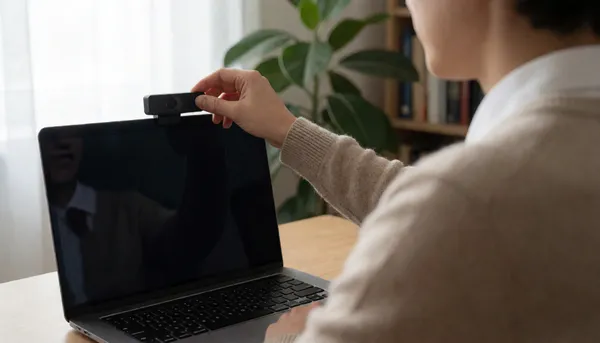
When you are ready to start, you will see options to include your microphone and webcam. This is where the "show, don't type" philosophy really shines. Turning on the webcam adds a human element. It makes the viewer feel like you are sitting next to them. Turning on the microphone lets you explain *why* you are doing something, not just *what* you are doing. For example, you can say, "I am clicking this button because the previous step failed," which provides context that a silent screen recording cannot.
Tips for Clear, Professional Recordings
You do not need to be a professional video editor to create a helpful video. In fact, less is more. Here are a few tips to keep your recordings effective:
- Keep it Short: Aim for under two minutes. If you are explaining a complex topic, break it into two or three shorter clips. People are more likely to watch a 60-second video than a 10-minute lecture.
- Hide Sensitive Info: Before you hit record, make sure your personal emails, passwords, or other private data are not visible on the screen. Since you are recording in real-time, you cannot easily edit out a mistake. It is safer to close unrelated tabs first.
- Speak Clearly: You do not need a perfect voice, but speak a little slower than you normally would. Viewers are often new to the topic. Clear diction helps them follow along.
- Use the Webcam Sparingly: Your face adds warmth, but it is not always necessary. If you are just showing a bug, the screen is enough. If you are teaching a relative, the webcam helps them feel connected to you.
Sharing Your Recording
Once you hit stop, Nebula processes the video quickly. You can then share the file directly. The tool is designed for simplicity, so you can download the file or share it via a link. This makes it easy to paste into a Slack message, an email, or a ticketing system. Because there is no watermark, the video looks professional and clean, which is important when sending materials to clients.
Many people are hesitant to start recording because they fear looking foolish. Remember, the goal is not to make a movie; the goal is to solve a problem. A rough but clear video is infinitely better than a perfectly written but confusing description. Give it a try the next time you find yourself typing a long explanation. You will likely find that the recording takes less time to create than the email to write, and it will save you hours of back-and-forth clarification.
Conclusion
Communication is about clarity, not complexity. By shifting from typing to showing, you reduce friction and speed up resolution. Whether you are debugging code, teaching a skill, or onboarding a client, a quick screen recording is the most efficient tool in your kit. It is free, it is private, and it works right in your browser. Next time you need to explain something visual, skip the text. Open the Nebula Screen Recorder, hit record, and let your screen do the talking.