Blur Faces and Plates Before Sharing Photos
Before sharing photos of your family, street, or events, protect privacy. Learn how to blur faces, license plates, and house numbers quickly using free browser tools.
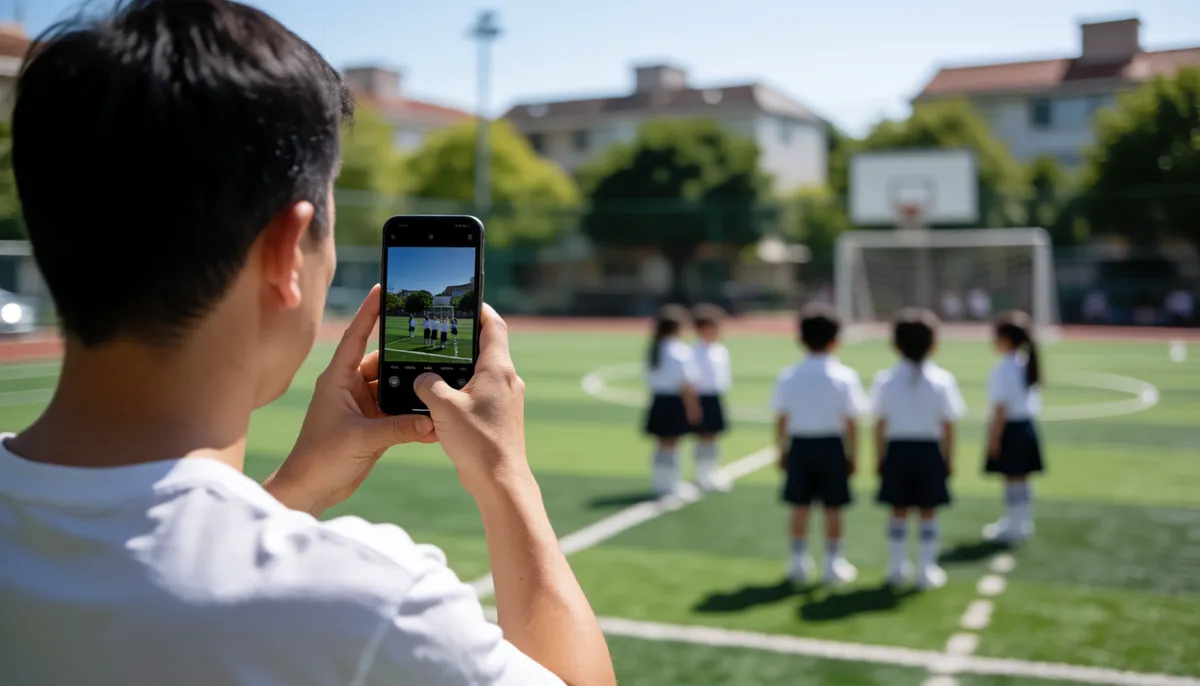
Sharing a photo of a birthday party, a family walk, or your new home feels natural. But when you hit “post,” do you pause to think about the people in the background, the car parked outside, or the address visible on the mailbox? In the digital age, a simple snapshot can accidentally share more personal information than you intended. You might not know the neighbors, but they know you. You might not know the drivers in the crowd, but they might recognize you. Protecting privacy doesn’t have to be a tedious editing session. With the right tools, you can hide sensitive details in seconds, right from your browser, without uploading your files to a server or creating an account.
Why Background Details Matter
It is easy to overlook the background of a photo. Our eyes go to the main subject—your child, your pet, or the view from your window. However, metadata and visual details in the background can reveal a lot. A clear license plate can be scanned by automated systems to track movements. A visible house number, combined with a timestamp and location tag, can pinpoint exactly where you are and when. Faces of friends, strangers, or even passersby are personal data too. Even if you trust the people in the photo, others who view it may not. Blurring these elements is a small step that adds a significant layer of safety for everyone in the frame.
The Fastest Way to Hide Faces and Plates
You don’t need to learn complex photo editing software to fix this. The goal is speed and effectiveness. If you are holding a photo with a crowd, multiple cars, or a clear view of your home, you need a tool that can identify and obscure these specific areas quickly. This is where the Face & Area Blur tool comes in. It is designed to find faces automatically, so you don’t have to manually draw boxes around every person in the background. It also allows you to manually select areas like license plates, mailboxes, or screens to blur or pixelate them. The process is simple: upload the image, let the tool detect what needs hiding, make any manual adjustments, and download the safe version. Because it runs in your browser, your photos stay on your device. No sign-up, no storage, no tracking. Just a cleaner, safer image to share.
Step-by-Step: Blurring a Street Scene
Imagine you have a photo of your front yard taken from the porch. Your house number is visible on the door, and a neighbor’s car is parked in the driveway. Here is how to handle it:
- Upload the image: Open the blurring tool and select your file. You can drag and drop or browse for the photo.
- Auto-detect faces: The tool will scan the image. If there are any people visible, they will be highlighted. Review these highlights. If the tool missed a face, or if it marked a dog as a person, adjust the selection manually.
- Manual area selection: Look for license plates, house numbers, or other identifying markers. Use the brush or box tool to highlight these specific areas. You don’t need to be precise; a slightly larger area is better than missing a digit.
- Choose your effect: You can choose to blur (Gaussian blur) or pixelate the selected areas. Pixelation is often better for license plates and text because it makes the characters completely unreadable, whereas a strong blur might still allow letters to be guessed.
- Review and download: Zoom in on the blurred areas to ensure no details are visible. Once you are satisfied, download the new image. The original file remains untouched on your device.
Crowds and Events: Handling Multiple Subjects
Photos of concerts, parades, or school events are tricky. There might be dozens of faces. Doing this manually would take hours. The automatic detection feature is your best friend here. It handles the bulk of the work, identifying heads and shoulders. However, always do a manual pass. Check the edges of the image where people might be partially cut off. Look for reflections in glasses or windows that might show a face. Also, remember that clothing or accessories can identify people. If a specific jacket or hat is unique to a friend, consider blurring that area too. The goal is to make the background anonymous. When you finish, the photo should tell the story of the event without exposing the identities of the attendees.
Protecting Your Home and Vehicle
Your home is your sanctuary, but in photos, it’s just coordinates. House numbers, unique architectural features, and mailbox designs can all be used to locate a property. If you are posting a photo of your home exterior, always blur the number. If you are posting a photo of your car, blur the license plate. This is especially important if you are sharing the photo in a public forum or with a broad audience. Even if you have your location services turned off, the visual data in the photo can be geolocated by someone with enough motivation and resources. Blurring these elements breaks the link between the image and your physical location. It’s a cheap insurance policy for your peace of mind.
Best Practices for Ongoing Privacy
Make privacy a habit, not an afterthought. Here are a few tips to keep in mind:
- Check the metadata: While blurring visual details is crucial, don’t forget that photos often contain GPS data. You can remove this using an Image Compressor & Metadata Remover or similar tool before sharing.
- Think about the audience: If you are posting to a private group of close friends, you might be comfortable with less blurring. For public feeds, err on the side of caution.
- Use a consistent style: If you blur faces, do it consistently. A mix of blurred and unblurred faces can look unprofessional or raise questions about why certain people were hidden.
- Review before you post: Take ten seconds to look at the photo with fresh eyes. Ask yourself: “Could I be identified? Could this person be identified? Could this location be found?”
Keep Your Stories, Not Your Data
Sharing photos is a great way to connect with others and remember special moments. But you shouldn’t have to sacrifice your privacy to do it. By taking a few seconds to blur faces, plates, and house numbers, you keep your life your own. It’s a simple step that shows respect for others and protects yourself. You can do it quickly, for free, and without installing any software. Next time you are about to share a photo, pause. Look at the background. If it tells more than you want it to, fix it. Your future self will thank you for keeping your digital footprint clean and your personal information private. Start by visiting the Face & Area Blur tool and try it on your last photo. It takes less time than it takes to make a coffee.